How to create a schedule that turns devices on, off, or dims them at set times, at sunset and sunrise, on chosen weekdays.
A schedule is the simplest automation: you choose devices and one or more times, and qtrl.me controls the devices every day according to the schedule. Typical uses are outdoor lighting that turns on at sunset and off at 23:00, or an engine heater socket that switches on weekdays at 06:30.
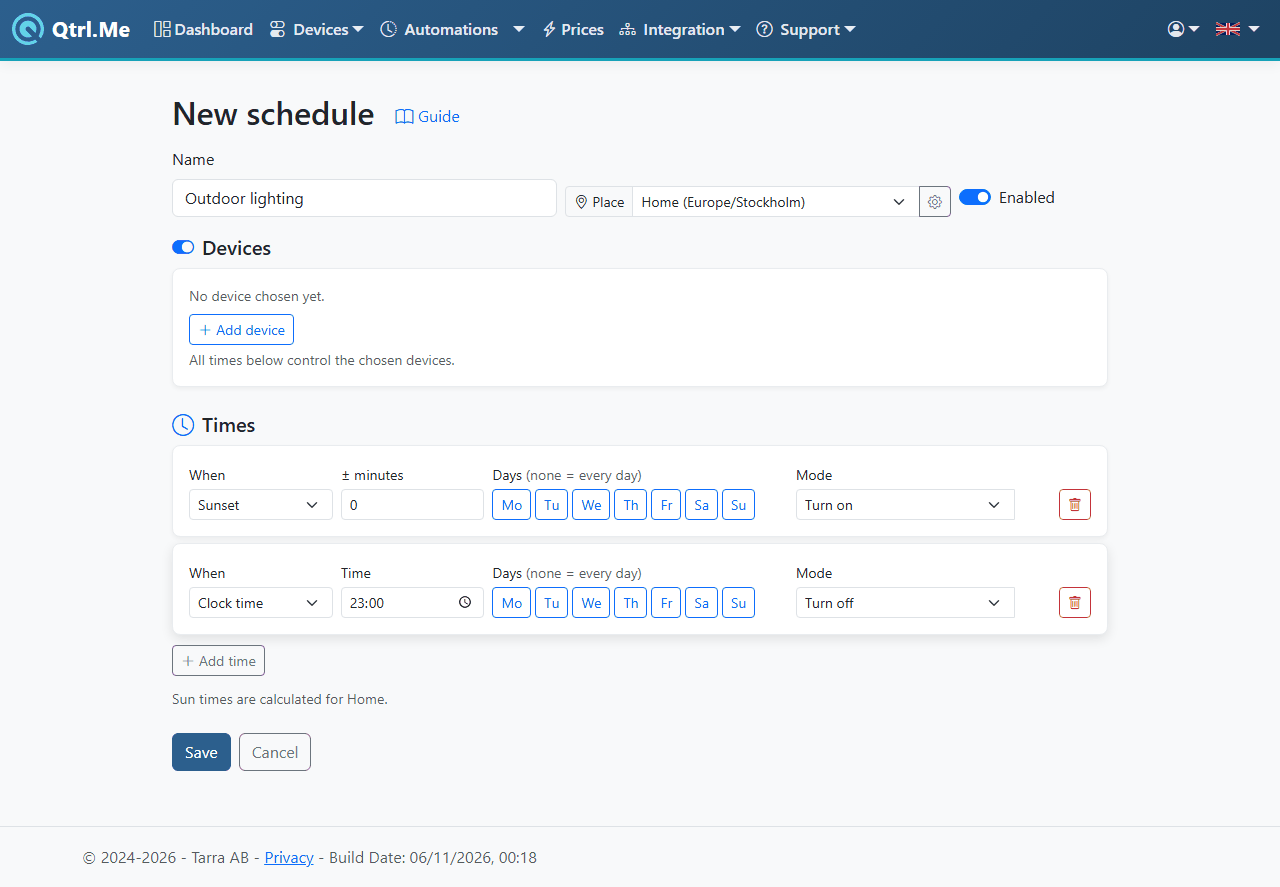
Create a schedule
- Go to Automations and click New schedule.
- Give the schedule a Name, for example Outdoor lighting.
- Choose a Place. The place decides the time zone and which location sunrise and sunset are calculated for. If you don't have a place yet, create one directly in the box, see Places below.
- Under Devices, click Add device and choose the devices to be controlled. All times in the schedule control the same devices.
- Under Times, click Add time for each occasion, see below.
- Click Save. The schedule is active as long as Enabled is switched on.
A time in the schedule
Each row under Times has four parts:
- When: Clock time, Sunset or Sunrise.
- Time or ± minutes: for a clock time you enter the time. For sun times you instead enter how many minutes before (minus) or after (plus) the sun it should happen. Sunset −30 means half an hour before sunset.
- Days: select the weekdays. No days selected means every day.
- Mode: Turn on, Turn off or Level… with a value 0–100 for dimmable devices.
A typical schedule for outdoor lighting becomes two rows: Sunset, 0, every day, Turn on and Clock time 23:00, every day, Turn off.
Sun times are calculated for the place's position, so a schedule in Kiruna and one in Malmö turn on at different times without you having to change anything throughout the year.
Places
Every automation belongs to a place. The place has a time zone, used for clock times and weekdays, and a position, used for sunrise and sunset. Most people only need one place, Home. If you have a summer house or a flat abroad, add it as its own place and select it in those automations.
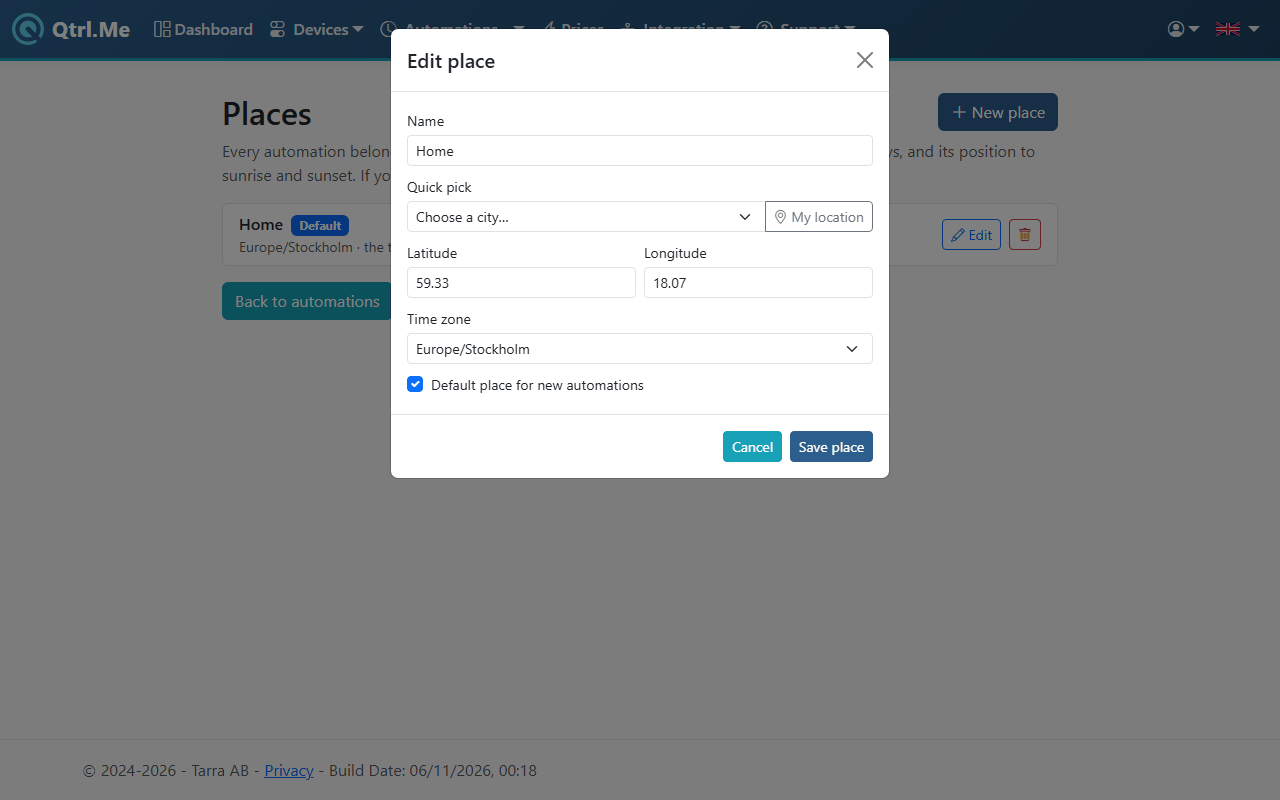
- Click Places on the Automations page and then New place.
- Enter a Name and choose a city under Quick pick, or click My location to fetch the position from the browser. You can also type in Latitude and Longitude yourself.
- Check the Time zone and click Save place.
The place you mark as Default place for new automations is selected automatically in new automations. You change a place later with Edit. If you delete a place, its automations move to the default place.
More than time of day?
A schedule can only go by times. If you also want to take into account, for example, the electricity price, a temperature, or whether it's dark outside, click View as flow in the schedule editor. That opens the same schedule in the flow editor, where you can keep building with conditions and more actions.
Good to know
- A schedule that is disabled is saved but does nothing. It still counts toward the account's number of automations.
- The device must be reachable when the time occurs. An RF device via a hub that is offline will not get the command.
- You can control the same device from several schedules. The most recent command wins.