How to use the flow editor in qtrl.me. Connect events, states, logic and actions on a canvas, test run without sending anything, and save.
A flow is the most flexible automation. Instead of a ready-made form, you build it like a small diagram: nodes that you connect together. Schedules and thermostats are actually flows with a simpler form on top, and a schedule can be opened as a flow with View as flow when you want to keep building.
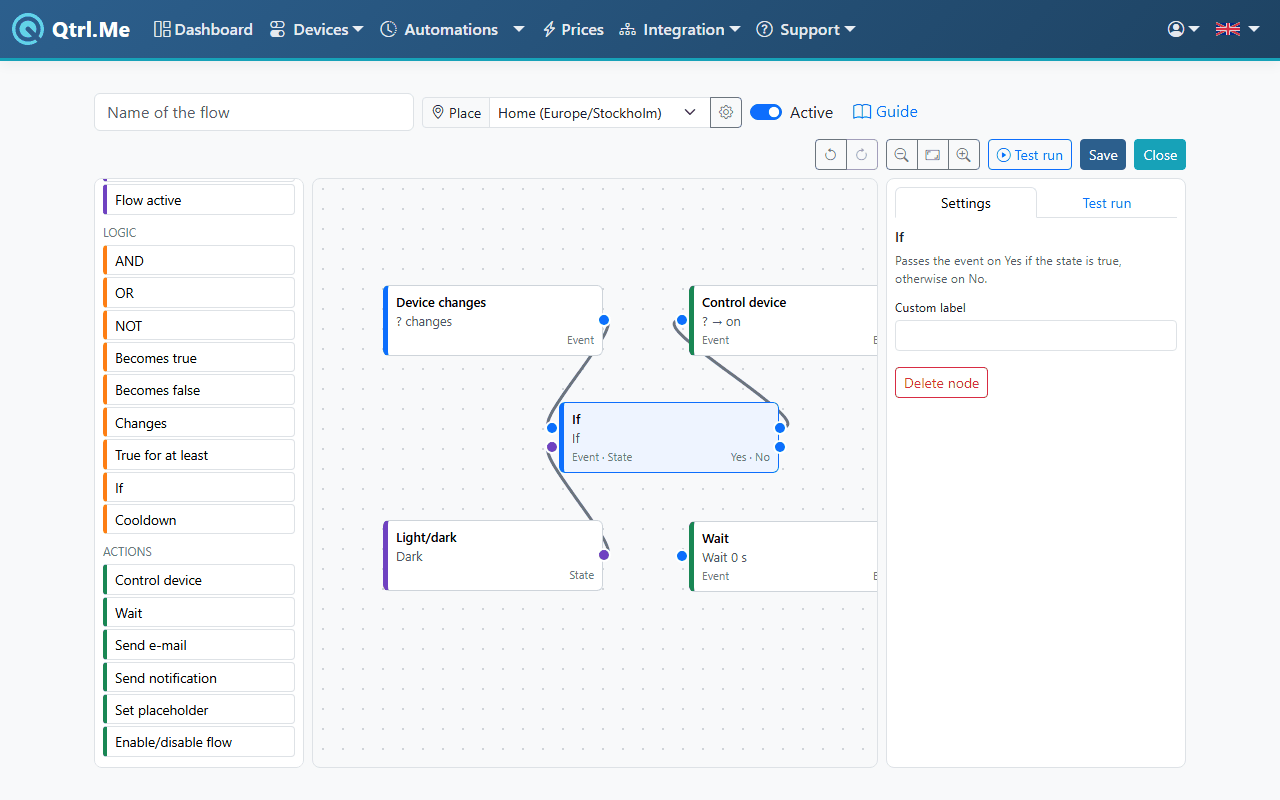
Four kinds of nodes
The node list on the left is divided into four groups:
- Triggers start the flow: Device changes, Device reaches value, Time of day, Sunrise/sunset, Electricity price changes and Electricity price reaches value.
- States are things that are true or false right now: Device value, Time window, Light/dark, Electricity price, Cheapest periods, Cheapest block before, Price level and Flow active.
- Logic combines states and triggers: AND, OR, NOT, Becomes true, Becomes false, Changes, True for at least, If, Cooldown.
- Actions are what should be done: Control device, Wait, Send e-mail, Send notification, Set placeholder and Enable/disable flow.
Nodes that aren't included in your plan are marked in the list. You can still add and test run them.
How to build
- Go to Automations and click New flow.
- Drag a node from the list onto the canvas, or click it to drop it in the middle. On a phone, tap Node.
- Select the node. On the Settings tab in the panel on the right (on a phone, tap Edit in the bar that appears), fill in its settings, for example which device and which value. The Custom label field gives the node its own name on the canvas.
- Connect the nodes by dragging from one node's output to the next node's input. Blue ports are events and purple ports are states. An event can't be connected to a state input and vice versa. The editor will tell you if a connection isn't allowed.
- Repeat until the flow is done, test run (see below) and click Save.
Undo and redo are in the toolbar and as Ctrl+Z and Ctrl+Shift+Z.
Events and states
The most important thing to understand is the difference between an event and a state.
An event occurs at a moment in time: the clock reaches 07:00, a door opens, the electricity price passes 100 öre. Triggers produce events, and an event starts the flow.
A state is true or false over a period of time: it's dark, the temperature is below 5 °C, we're in the three cheapest hours. A state doesn't start anything by itself. It's used as a condition with If, or turned into an event with Becomes true, Becomes false or Changes.
An example. Turn on the hallway light when the front door opens, but only when it's dark, and turn it off after ten minutes:
- Trigger Device changes: the door contact.
- Logic If: connect the trigger to the event input and the state Light/dark (dark) to the state input. The event continues on Yes if the state is true, otherwise on No.
- Action Control device: the hallway light, on.
- Action Wait: 10 minutes.
- Action Control device: the hallway light, off.
If instead you want something to happen when a state starts to apply, for example when it gets dark, use Becomes true after the state.
Some useful nodes
- True for at least only lets a state through once it has been true for a given time. Good against sensors that flicker around a threshold.
- Cooldown lets through at most one event per given number of minutes, for example so you only get one email per hour.
- Send e-mail sends a message to your address. The number of emails per day depends on your plan.
- Send notification sends a push notification to your phones that are signed in to the QtrlMe app. Under Phones, choose All phones or Selected phones. Like the e-mail, the title and message can contain values from the flow, inserted with Insert, and Minimum time between notifications (minutes) keeps a busy flow from sending too many.
- Set placeholder stores a value that another part of the flow can read.
- Enable/disable flow turns another flow on or off, for example a vacation mode.
Test run before you save
The Test run button evaluates the flow without sending anything to the devices. Each state gets a green or red border depending on whether it's true or false right now. The result is shown on the Test run tab in the panel on the right, next to Settings. If you select a trigger (or a Becomes true), the tab shows what would happen if it occurred now, as a list of actions. If it says Pending, the flow has timers that would be running.
Test run often. It's the fastest way to see that the conditions are interpreted the way you intended.
Good to know
- A flow that runs its actions very many times in a minute, which usually means it's looping, is stopped and disabled automatically. The reason is shown in the list of automations.
- Devices that disappear, for example a removed Shelly, are skipped. The flow continues with the rest.
- Times of day and sun times follow the flow's place, see the guide on schedules.
- The electricity price nodes are included from the Plus level. How they work is described in Controlling by the electricity price.