How to build an automation in qtrl.me. Pick a trigger, add conditions, choose what should happen, and test run before saving.
An automation lets your devices react to each other: turn on a light when the motion sensor trips, switch on the heater when it gets cold, turn off at an expensive electricity price. Automations run in the cloud and work for both RF-Hub devices and Shelly devices.
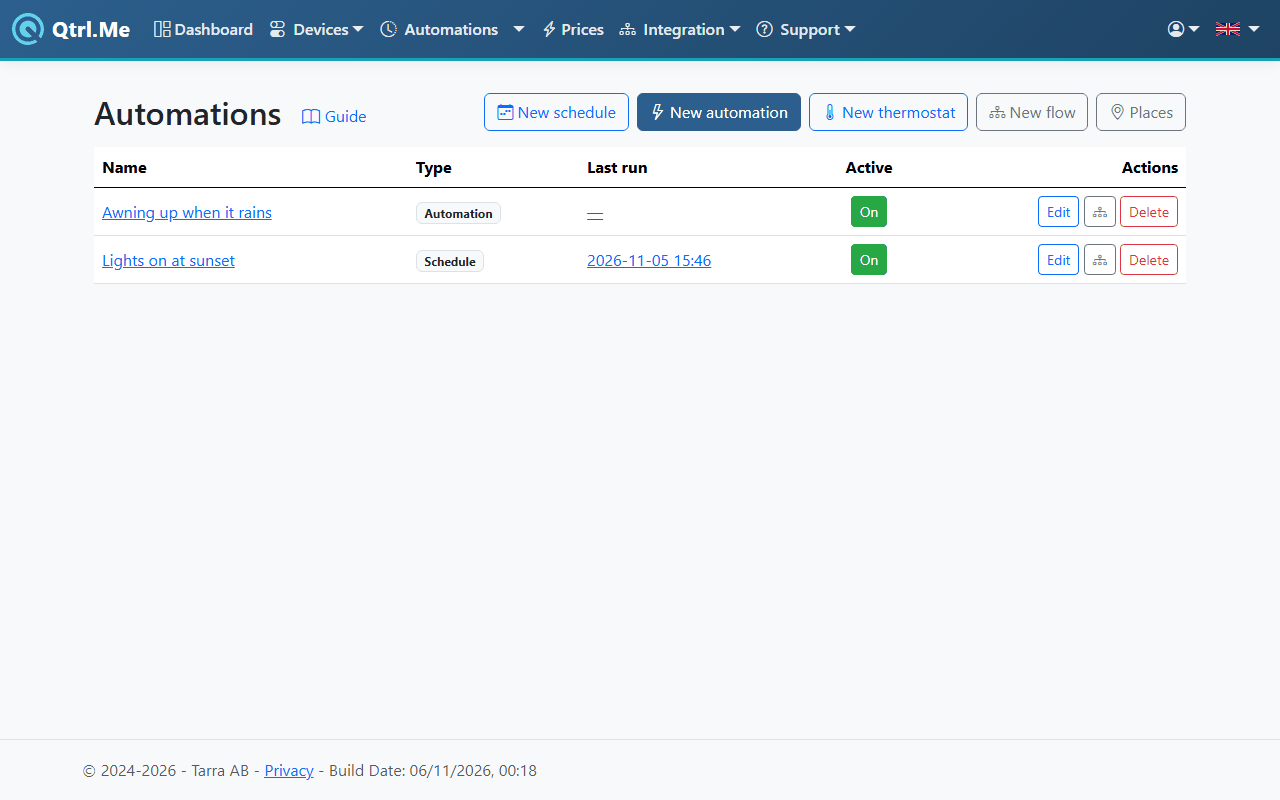
Four ways to start
Under Automations there are four buttons. They all save to the same engine, so you can start simple and open the result in the flow editor later.
| Button |
Good for |
| New schedule |
Turning on and off at a set time or at sunrise and sunset. |
| New automation |
Rules of the type when something happens, if the conditions hold, then do this. |
| New thermostat |
Keeping a temperature with a sensor and one or more heaters. |
| New flow |
Free-form building with nodes and connections for advanced rules. |
This guide covers New automation, the simple editor.
Name, place and enabled
Give the automation a name that says what it does, for example "Water heater on cheap electricity". The Place decides the time zone and sun times. The Enabled switch lets you pause the automation without deleting it.
Two modes
- When something happens: the automation runs every time an event occurs, for example a button is pressed or a sensor reports.
- When the conditions become true: the automation watches the conditions and runs the actions under When the conditions become true, do when they start to apply, and those under When the conditions stop being true, do when they stop applying. This suits "turn on when the price is low, turn off when it no longer is."
When
Add one or more triggers with + Trigger. It's enough for one of them to occur. Examples of triggers: a device changes value, a button on a remote is pressed, a time of day, sunset, the electricity price changes.
If
Conditions checked at the same moment the trigger occurs. Add them with + Condition. Choose whether All of these (AND) or Any of these (OR) must hold, and use + Group to combine the two, for example "it's a weekday AND (the temperature is below 18 degrees OR the electricity price is low)". This section is optional.
Then and Else
Then is what should happen. Add actions with + Action: turn a device on or off, set a level, send an email, send a notification to your phone, wait a while. Else runs when the conditions don't hold, and is optional.
Test run before you save
Click Test run. The automation is evaluated against today's values, but nothing is sent to the devices. You see which conditions are true right now and what would have happened. Test run also works for features your plan doesn't cover, so you can try it out before upgrading.
Follow up
In the list of automations you can see when each automation last ran. Click the time under Last run to see the Run log with every run and what was evaluated.
How many automations can I have?
| Plan |
Automations |
| Free |
3 |
| Plus |
20 |
| Premium |
100 |
| Pro |
500 |
The limit applies to all types together: schedules, automations, thermostats and flows. Electricity price in automations requires Plus or higher. Read more under My subscription.
Tips
- Start with one automation at a time and test run it.
- Name your devices clearly, it makes the conditions easier to read.
- If you need a rule the simple editor can't handle, open it with View as flow and keep building there.