How to give a value on a virtual device a formula, for example the average temperature of two sensors or the power in kW, so qtrl.me recalculates it automatically when the inputs change.
A value on a virtual device does not have to be sent in from outside. It can instead be calculated with a formula from other channels you have: the average of two temperature sensors, the difference between indoor and outdoor, the power converted to kW, or an on/off that switches on when several conditions are met. As soon as a channel in the formula changes, the value is recalculated, and the result works like any other sensor in flows, thermostats and on the dashboard.
- Go to Devices → Virtual devices and create a device with a value of the right type, for example Temperature (°C) for an average temperature, or Number with the unit kW. If you already have a device, just add a value to it.
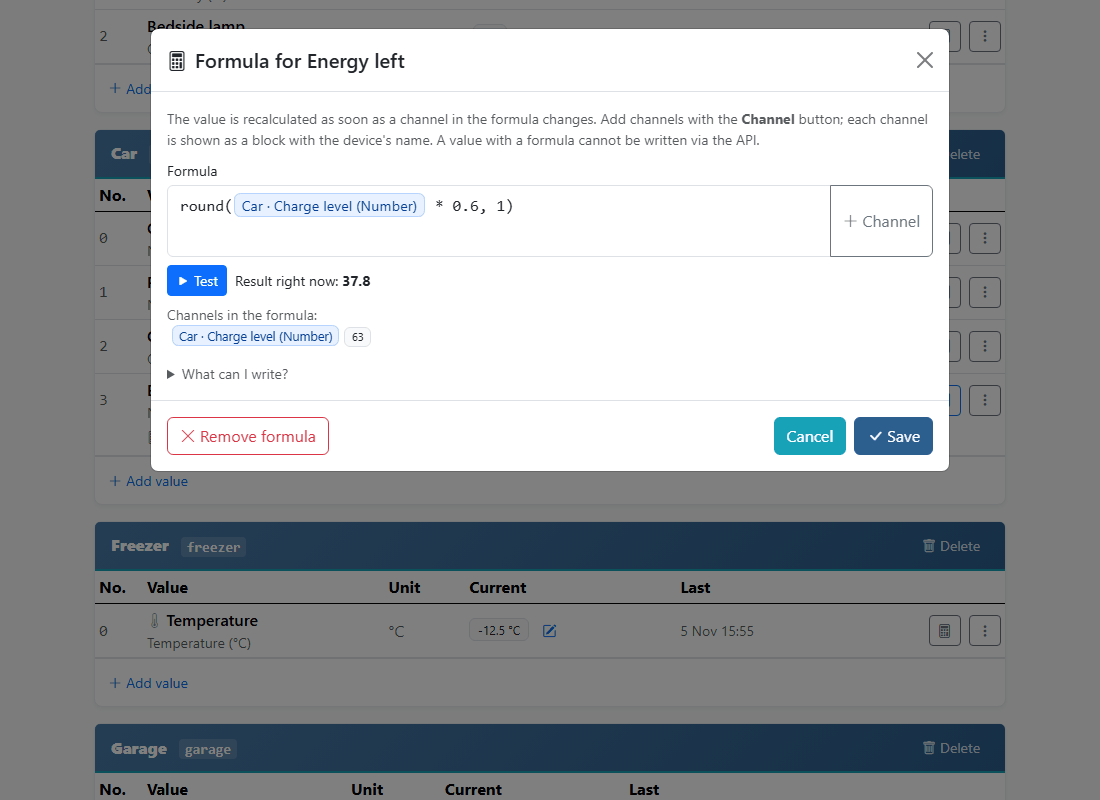
- Click the calculator button on the value's row (Calculate the value with a formula).
- Write the formula. The easiest way to add channels is with the Channel button, which opens the same picker as in the automations and inserts the channel where the cursor is, as a block with the device's and channel's names. Behind the block the formula stores
state(id), and if you type state(id) yourself it also becomes a block when you test.
- Click Test. You see the Result right now and which channels the formula reads, with their current values.
- Click Save. The value is calculated immediately, and then every time an input changes.
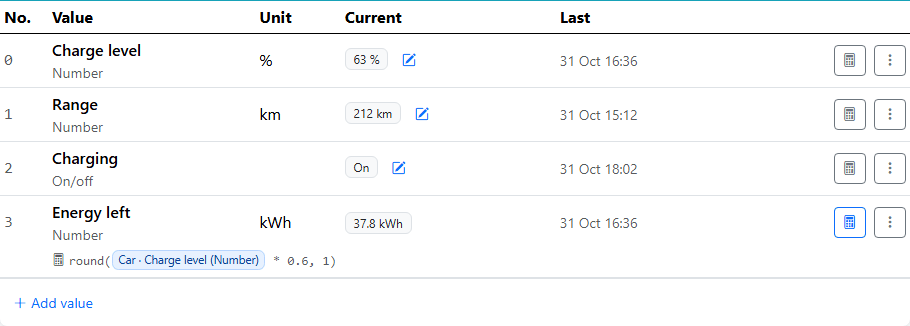
On the page, the formula is shown under the value's name, and the pencil for setting the value by hand disappears: a calculated value can only be changed through its formula. If you want to send in values again, open the formula and click Remove formula.
| Write |
Means |
state(12) |
the value of channel 12, as text or a number depending on context |
num(12) |
the same, but always as a number (45 % becomes 45) |
+ - * / % |
arithmetic operators, with parentheses as usual |
> < >= <= == != |
comparisons; == for equal to |
on off open closed |
states for on/off and open/closed |
"text" |
a text, in quotation marks |
Join conditions with && for and, || for or and ! for not.
Functions:
| Function |
Gives |
min(a, b, …) / max(a, b, …) |
the smallest or largest |
avg(a, b, …) |
the average |
abs(x) |
without sign |
round(x, decimals) / floor(x) / ceil(x) |
rounding |
clamp(x, lowest, highest) |
x limited to a range |
if(condition, a, b) |
a if the condition is true, otherwise b |
condition ? a : b |
the same thing, written as in many programming languages |
Numbers that come from a channel with a unit are interpreted as numbers: 21.5 °C counts as 21.5. A missing value counts as 0 in arithmetic and as blank in comparisons. Division by zero gives no value at all, and the value is then shown as blank.
Examples
Average temperature of two sensors, on a value of type Temperature:
avg(state(410), state(411))
Difference between indoor and outdoor, rounded to one decimal:
round(state(410) - state(412), 1)
Power in kW from a power meter that reports in W:
round(state(520) / 1000, 2)
Total power of three Shelly plugs:
state(520) + state(521) + state(522)
An on/off value that is on when the charger is running and the sun gives more than 2 kW:
if(state(530) == on && state(540) > 2000, on, off)
The same thing with a question mark:
state(530) == on && state(540) > 2000 ? on : off
Battery energy remaining in kWh from the charge level in percent, for a 60 kWh battery:
round(state(600) * 0.6, 1)
Formulas can build on each other: a calculated value can be read by another formula. The only thing that is not allowed is a circle, where a value reads itself directly or via other formulas. This is blocked when you save.
Good to know
- The formula may only read channels on your own devices: hubs, connections like Shelly, and virtual devices. You can see channel IDs under Test, where each channel is shown with its name and current value.
- The result is adapted to the value's type. A value of type On/off needs a formula that gives
on or off (or true/false), a Number a number. If the result does not fit the type, the value becomes blank; Test shows what the formula gives.
- A formula may be at most 500 characters long and read at most 16 channels.
- The value is recalculated when an input reports, not on a clock. A channel that reports every second drives the formula just as often; as a safeguard, a value is calculated at most 60 times a minute.
- The formula runs in the cloud with its own, sandboxed formula interpreter. It cannot run code, reach other users' devices, or affect anything other than the value it belongs to.