From account to first automation. How to add your RF-Hub, find your devices, and take the next step with schedules, Shelly, virtual devices and dashboards.
qtrl.me is the cloud service for RF-Hub. Here you can see your devices wherever you are, build automations and your own dashboard, and connect Shelly and other systems. This guide takes you from an empty account to a working setup.
1. Create an account
Sign up with email and password, or log in with Google or Facebook. Confirm your email address via the message you receive. All accounts start on the Free tier, which is enough for a couple of automations and one dashboard. Under My subscription in the account menu you can start a free trial of Premium and see what the higher tiers offer.
2. Add your RF-Hub
The hub is connected to your account from the hub's own web interface, not from qtrl.me. That's a security measure: only someone on the same network as the hub can add it.
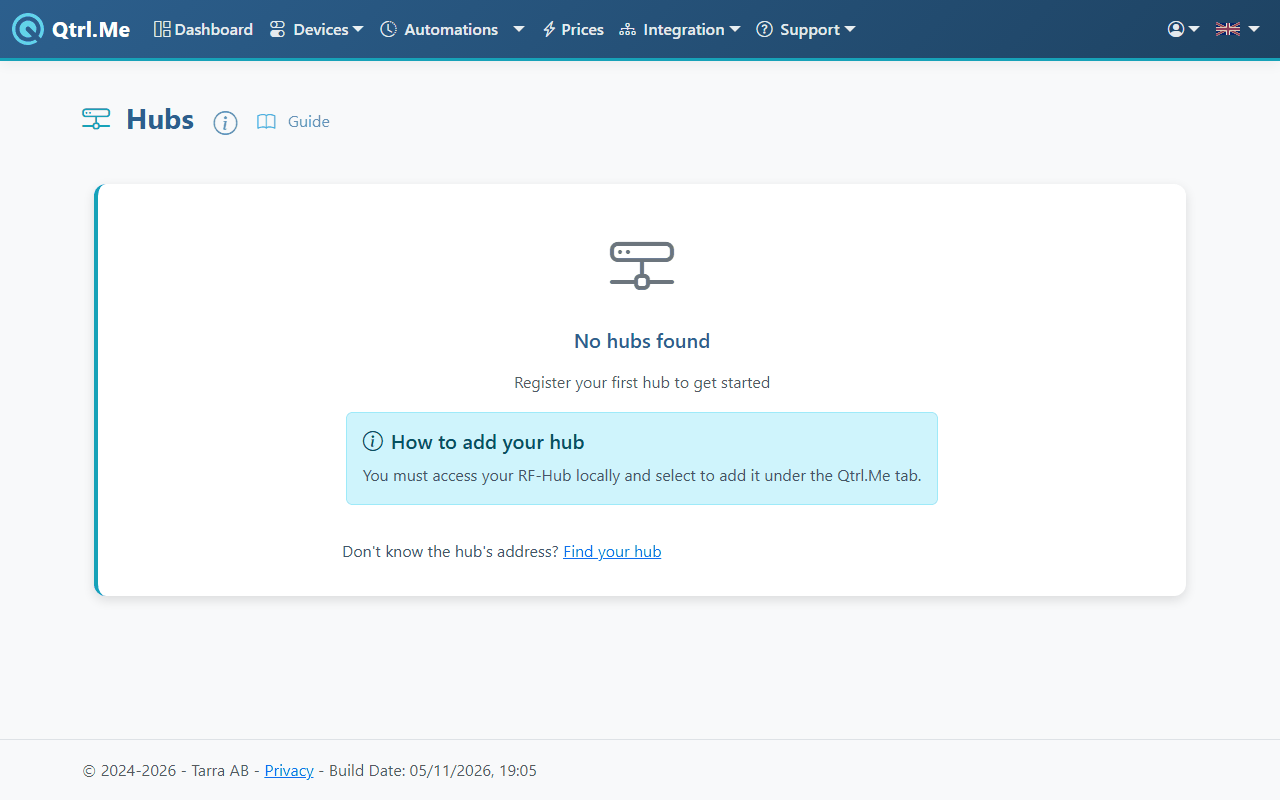
- Connect the hub to power and your wifi, following the quick-start guide that came with it.
- Go to Devices → Hubs on qtrl.me from a computer or phone on the same network. Hubs on the network that haven't been added yet are listed by the end of their serial number, printed on the back of the hub. Click it to open the hub's interface. Can't find it? Use the Find your hub link.
- In the hub's interface, go to the Qtrl.Me tab and add the hub to your account.
- Go back to Hubs on qtrl.me. The hub now appears as a card with its name, version and when it was last heard from. Rename it with the pencil icon (Edit Hub Name) if you like.
The card also has a Login Link that gives access to the hub's devices without logging in. Only share it with people you trust, such as family.
3. Your devices
RF devices that the hub has learned, such as remotes, temperature sensors and sockets, show up under Devices. You add new devices in the hub's interface, where you also teach it transmitters and pair receivers. Once the hub recognises them, they show up on qtrl.me within a minute or so.
If a hub's card says New firmware, a newer version is available. Update it following the Update your RF-Hub's firmware guide.
4. Next steps
- Automations: turn on the lights at sunset, hold a temperature, or control things by the electricity price. Start with the Automations: when, if and then guide.
- Dashboard: gather sensors and buttons on your own page, see Dashboard.
- Shelly: share devices from your Shelly account, see Shelly.
- Virtual devices: bring in values from Home Assistant, Homey or your own scripts, see Virtual devices.
- Home Assistant and Homey: the hub talks MQTT directly to Home Assistant on the local network, and the Homey app RF-Hub fetches the devices via qtrl.me.
Common questions
- The hub doesn't show up under Hubs on your network. Your computer and the hub must be on the same network. Guest networks and some routers block traffic between devices. Try the Find your hub link, or open the hub's address directly.
- The hub shows as Offline. Check the power and wifi. The hub's light shows its status, see the quick-start guide. Once the hub reconnects, the card updates by itself.
- I've moved, or changed router. The hub needs the new wifi details. Do this in the hub's interface, or with RF-App on your phone.